Setup Problems and Fixes
If Windows showed a warning while you were installing or first opening Kuzark, or the game won't start, pick the heading below that best matches the text on your screen. Each step has a picture of the window you will see; click the spot with the orange frame.
Why do these warnings appear? Kuzark's installer is not yet signed with a digital signature certificate. Windows does not recognise new, unsigned files, so it says "Unknown publisher" and asks you first. The file contains no virus or anything harmful.
Only run the file you downloaded from kuzark.com. Do not open installers from other sites, ones passed around on Discord, or ones with a different name.
- Setup"Windows protected your PC"
- Windows 11Smart App Control blocked it
- Download"Not commonly downloaded" warning
- AntivirusFile deleted or quarantined
- Launcher"Cannot reach the server"
- LauncherDisk full (ENOSPC)
- LauncherFile permission (EPERM / EBUSY) and "game is running"
- Setup"This folder is not writable"
- Game"Game files are missing"
- GameVCRUNTIME140.dll was not found
- GameWon't start, black screen, graphics error
- SupportStill not solved
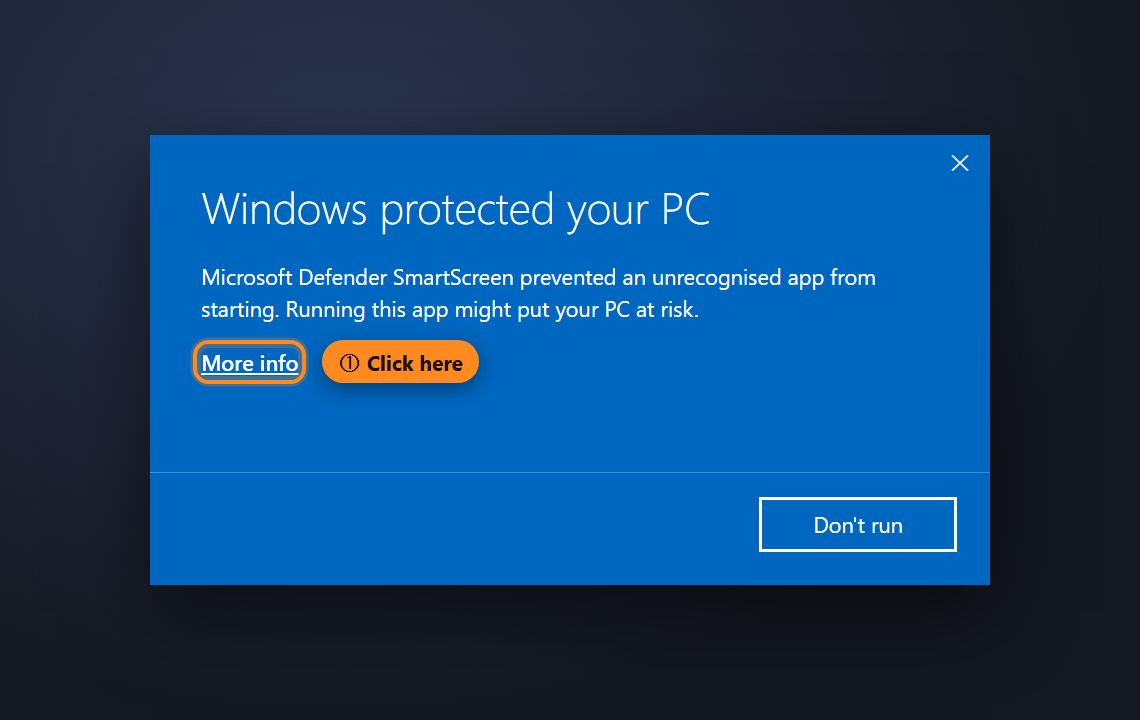
1"Windows protected your PC"
When you open the installer (Kuzark-Kurulum.exe) a blue window appears. This is Windows' SmartScreen protection and it only shows on the first run.
- Click the More info link below the text. Do not press "Don't run"; that cancels the installation.
- The window now shows App: Kuzark-Kurulum.exe and a new button appears at the bottom right: press Run anyway.
- The setup wizard opens. Press Next on the welcome and folder pages and I Agree on the licence page; setup finishes in a minute and the launcher opens.
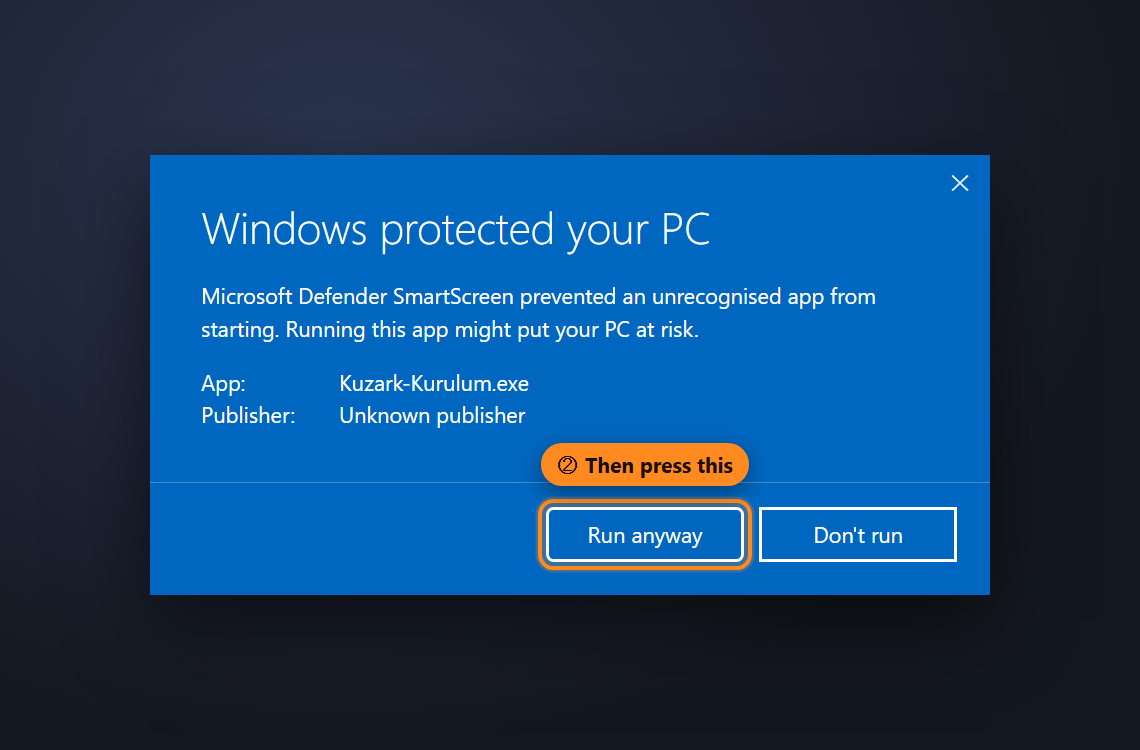
If the "Run anyway" button never appears and the window title says Smart App Control, go to the next heading.
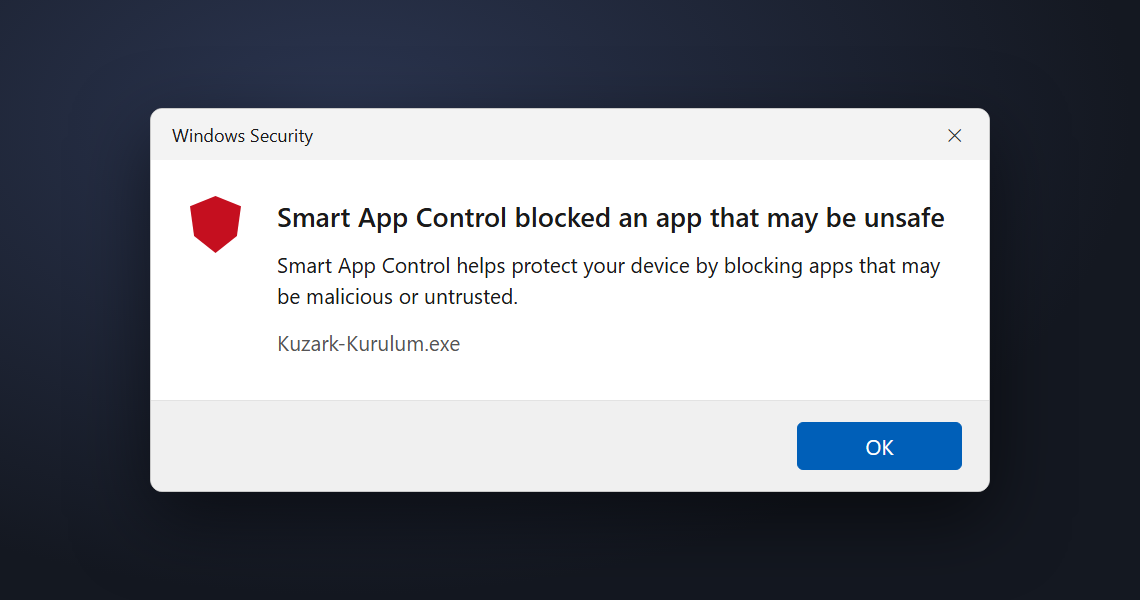
2Smart App Control blocked it (Windows 11)
If Windows 11's Smart App Control is on, it never allows unsigned apps; the window only has an OK button and no "Run anyway" option. This feature is usually on by default on PCs where Windows 11 was freshly installed. To install and play the game you need to turn it off:
- Open the Start menu, type Windows Security and open the app.
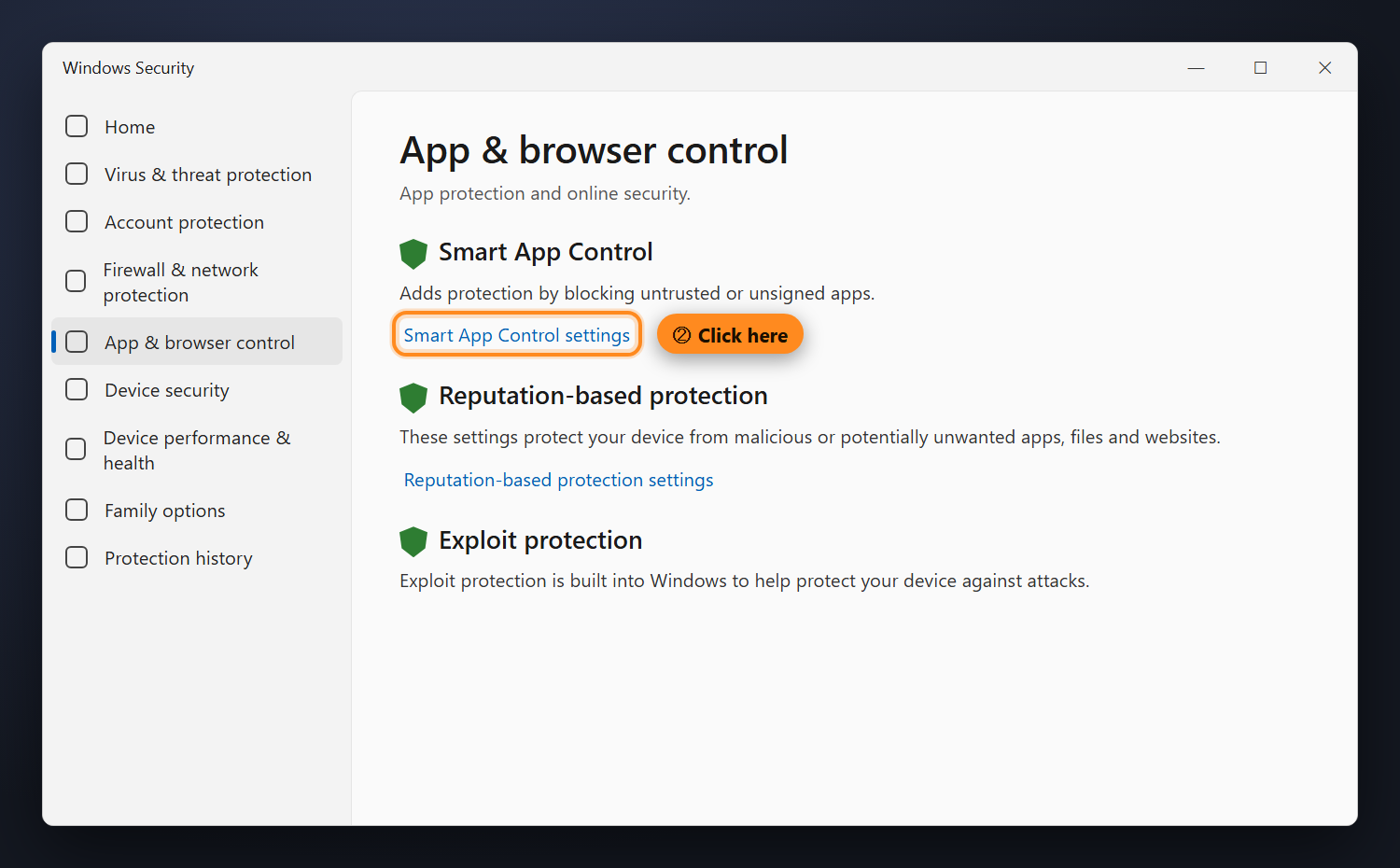
- In the menu on the left click App & browser control, then Smart App Control settings.
- Choose Off. If Windows asks for confirmation, say Yes.
- Open the installer again. If the blue SmartScreen window appears this time, get past it as in heading 1.
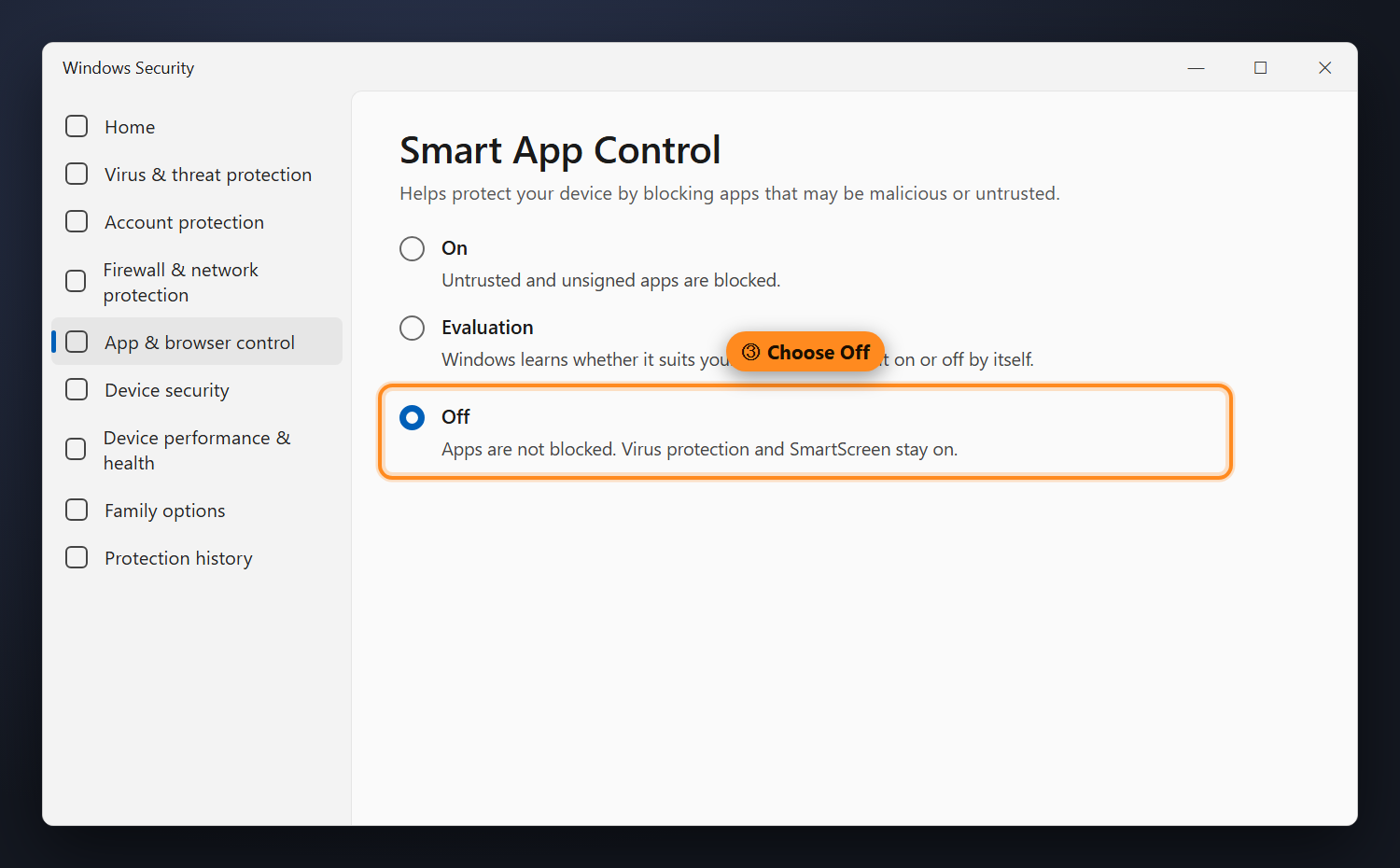
Will my PC be unprotected? No. With Smart App Control off, Microsoft Defender virus protection, the firewall and SmartScreen stay on; only the blanket blocking of unsigned apps is removed.
On current Windows 11 versions you can turn it back on from the same page whenever you like. On older versions it cannot be turned back on without resetting Windows, so keeping Windows up to date is recommended.
3The browser blocked the download: "not commonly downloaded"
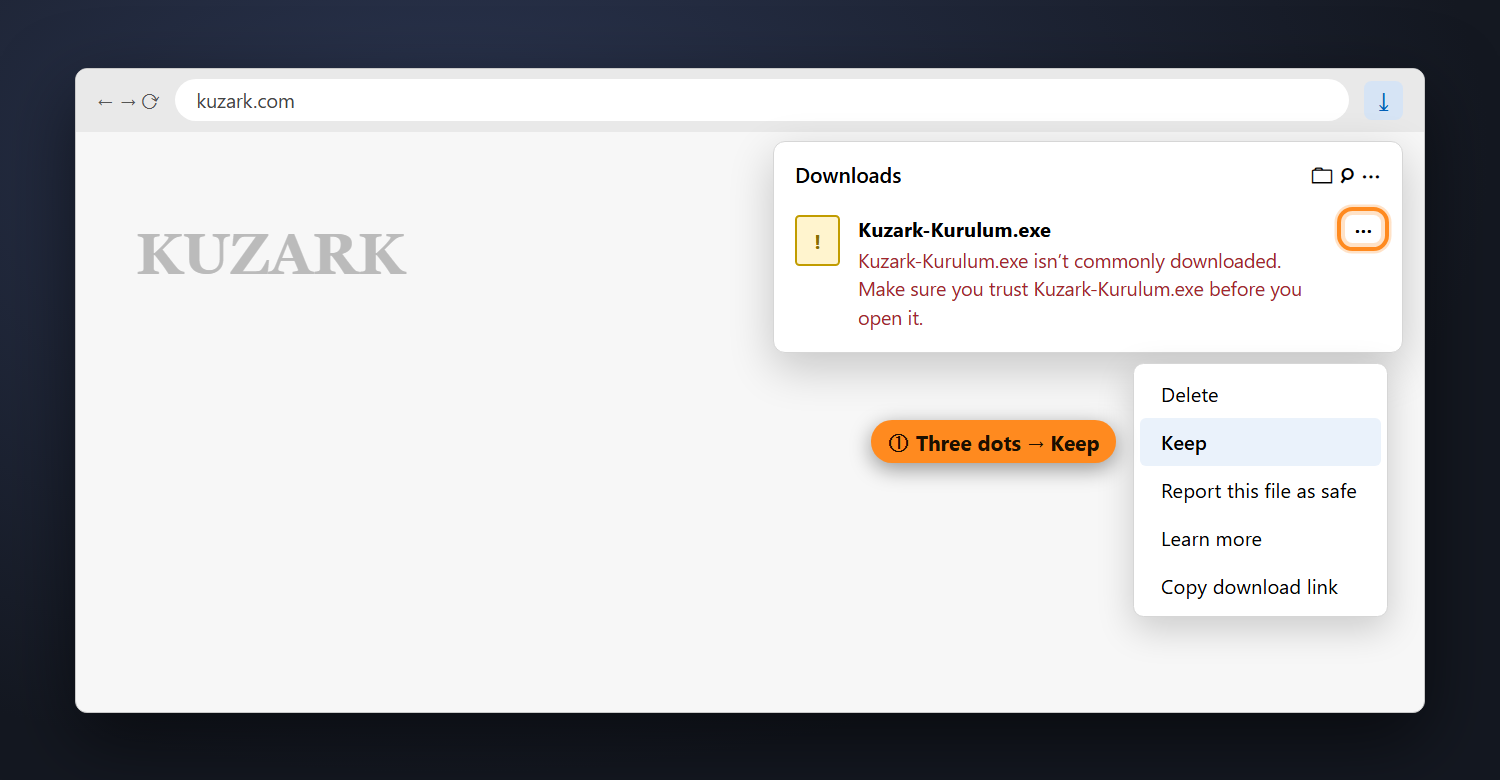
Edge or Chrome may hold the file after the download finishes because they don't recognise new files. The file cannot be opened until you allow it.
Microsoft Edge
- In the Downloads panel at the top right, click the three dots (⋯) next to Kuzark-Kurulum.exe and choose Keep.
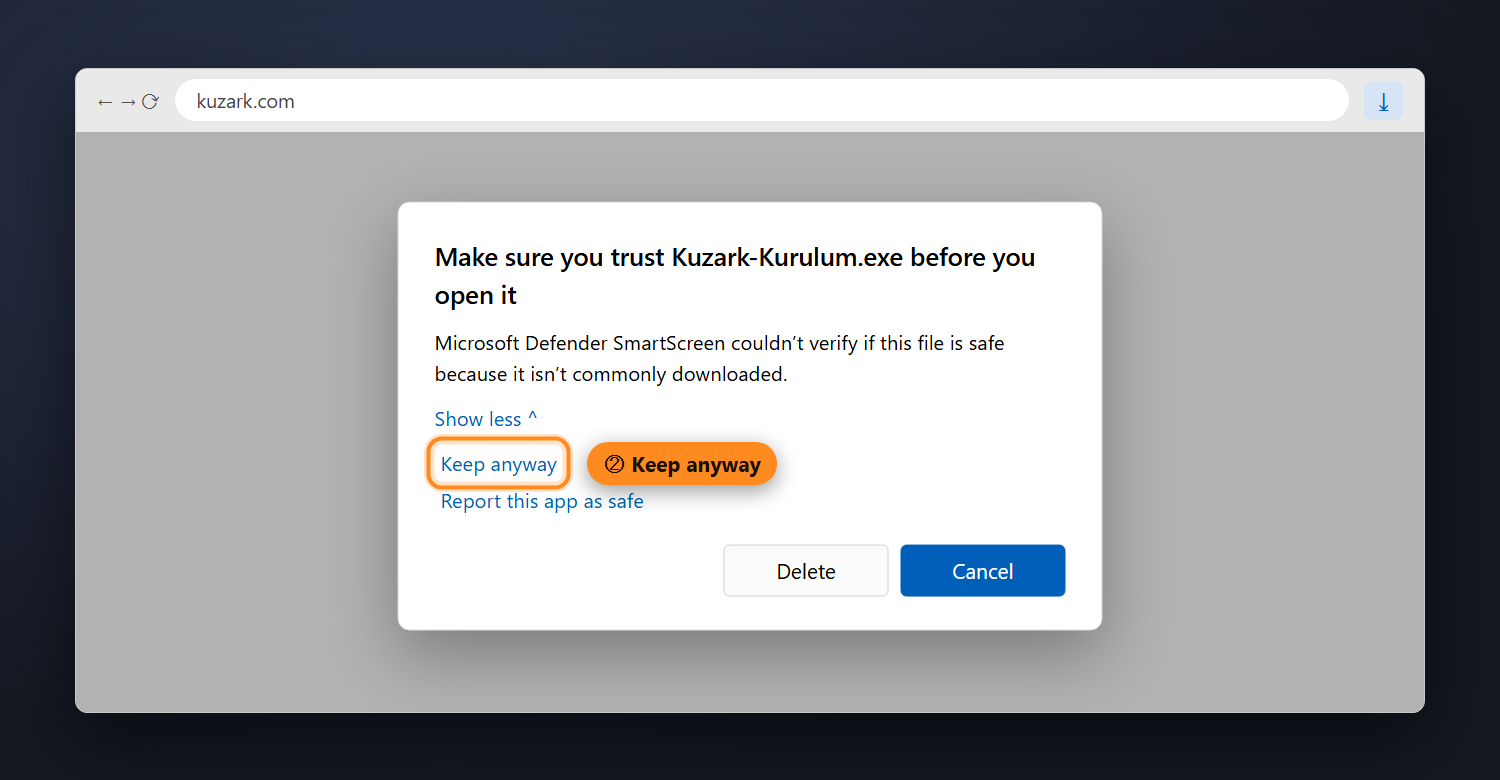
- In the window that opens click Show more, then press Keep anyway.
- The file can now be opened from the downloads list; click it to start setup.
Google Chrome
In the download bubble, or on the downloads page opened with Ctrl + J, press Keep / Download anyway next to the file. If Chrome asks once more, choose Keep again.
4The antivirus deleted or quarantined the file
If the Kuzark shortcut doesn't work after installing, the launcher closes by itself, or files disappear after an update, your antivirus may have mistaken a file for a threat. This is common with new, unsigned games (a false positive).
Microsoft Defender (Windows Security)
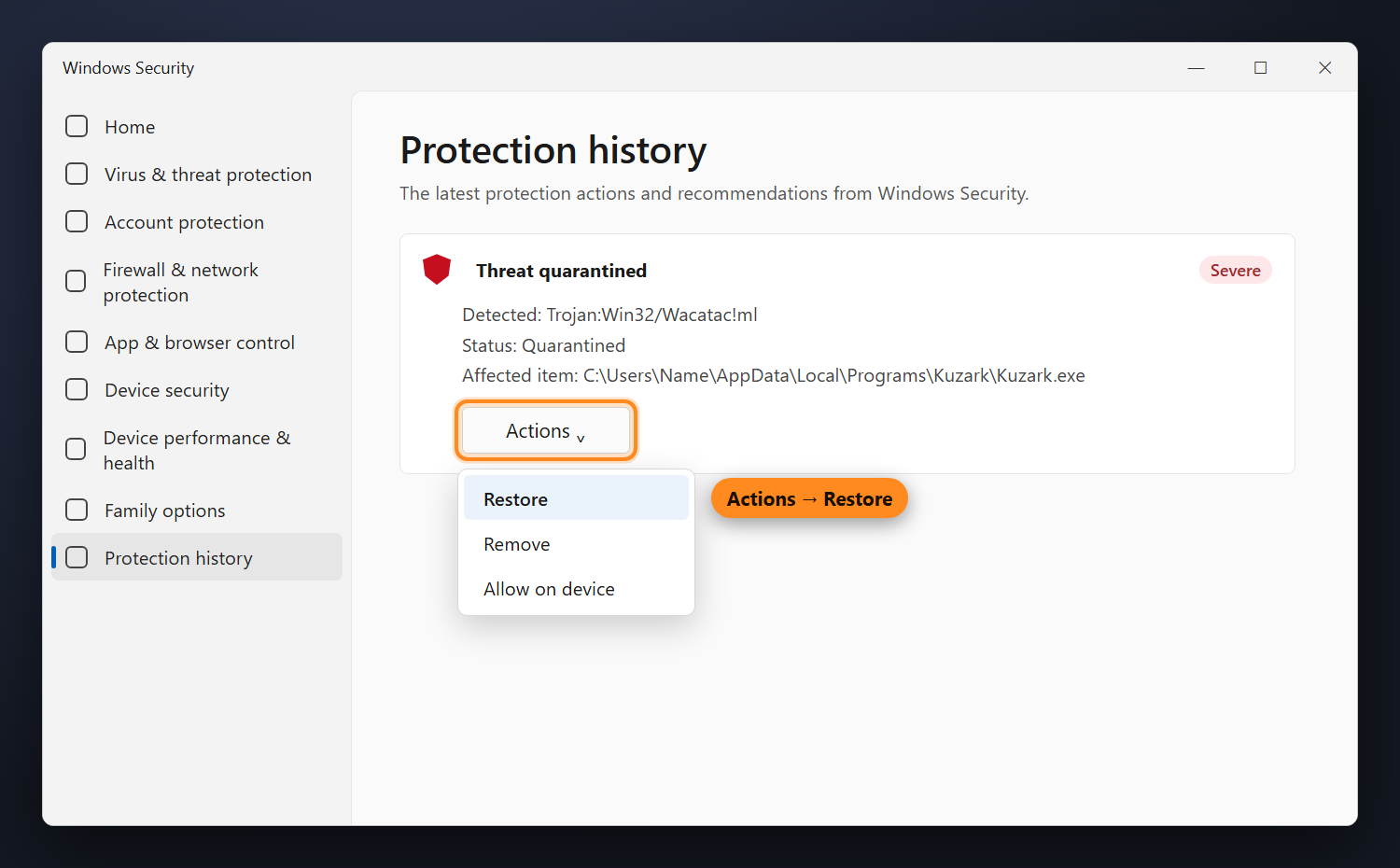
- Open Windows Security and go to Protection history on the left.
- Open the entry whose affected item mentions Kuzark and choose Actions → Restore.
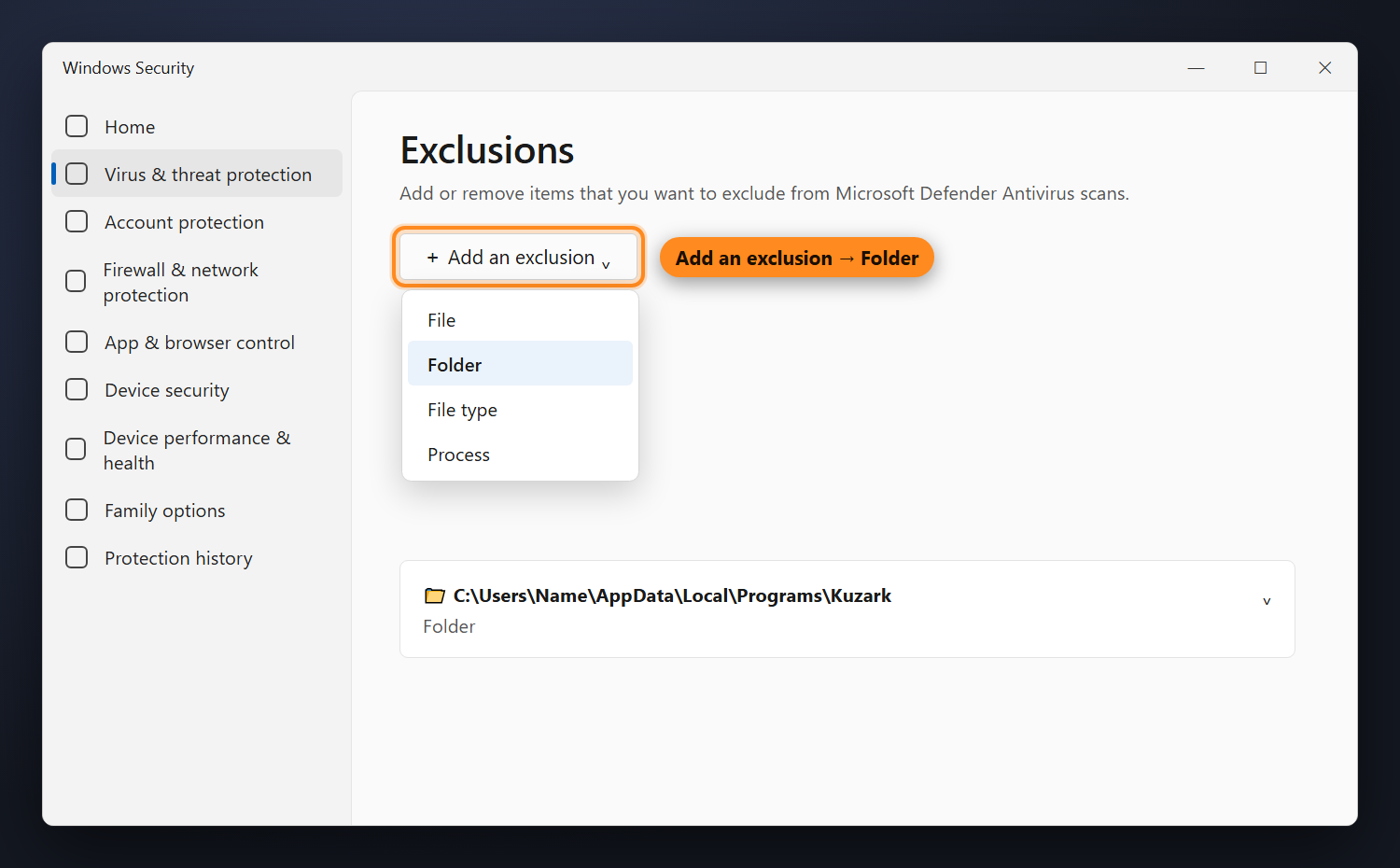
- To stop it happening again, add the game folder to the exclusions: Virus & threat protection → Manage settings → further down Add or remove exclusions → Add an exclusion → Folder.
- Choose the folder where the game is installed. The default location is C:\Users\(your name)\AppData\Local\Programs\Kuzark (you can also get there by typing %LOCALAPPDATA%\Programs\Kuzark in the address bar).
- Reopen the launcher; it downloads any missing files by itself.
If you use another antivirus program (paid or free), restore the Kuzark files from its quarantine section and add the same folder to its exceptions / exclusions list.
5Launcher: "Cannot reach the server"
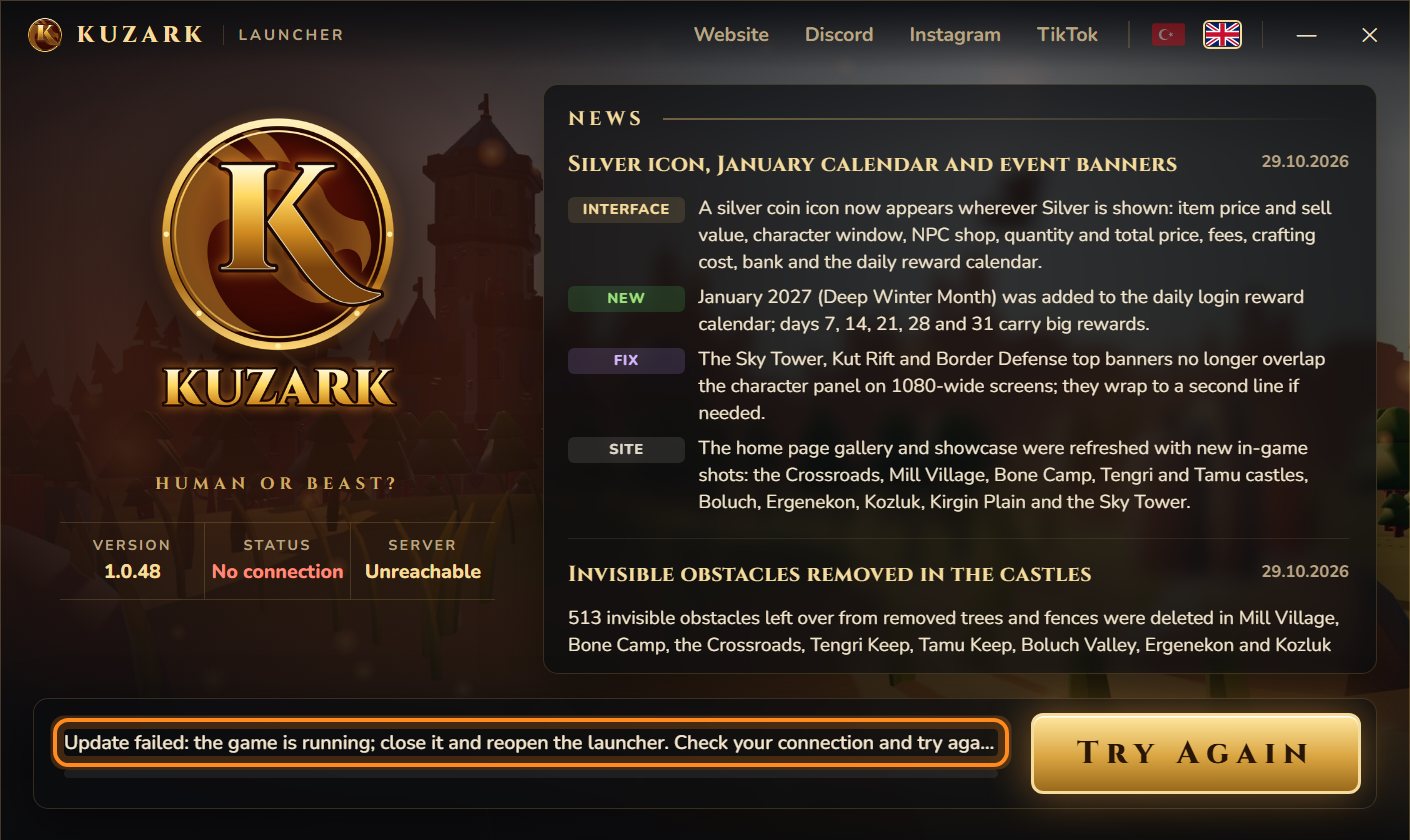
When it opens, the launcher connects to the update server. If it can't, Status shows No connection, Server shows Unreachable and the PLAY button turns into Try Again. The launcher retries by itself every 20 seconds.
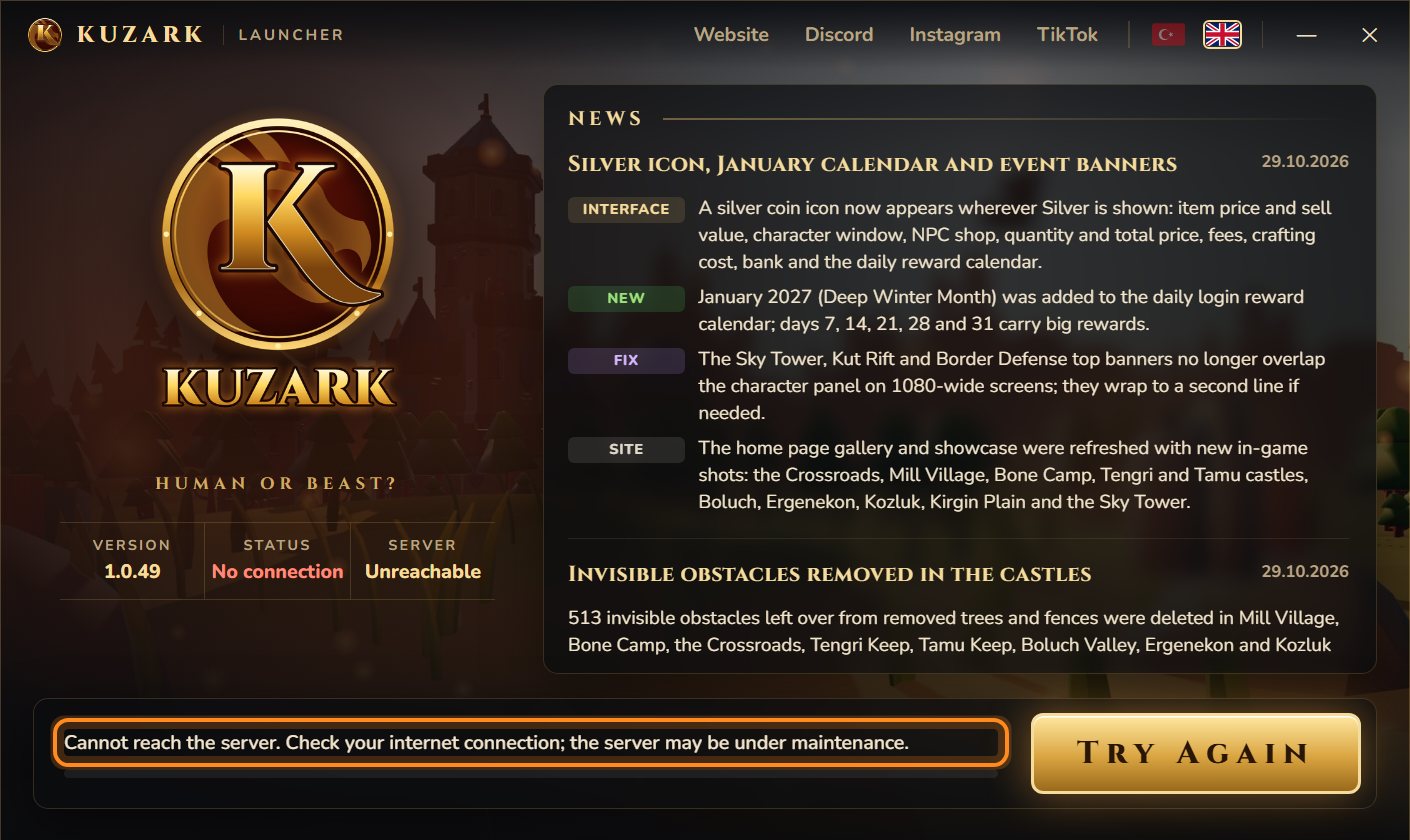
- Make sure your internet works: open kuzark.com in your browser. If the site doesn't open, the problem is your connection; restart your modem.
- If the site opens but the launcher can't connect, the server may be under maintenance or updating. Check the announcements on Discord; maintenance usually takes a few minutes.
- A firewall or antivirus may be stopping Kuzark from going online. If Windows asked whether to allow Kuzark on the network, choose Allow; if you have another security program, give Kuzark internet access.
- If you use a VPN, a proxy or a school / work network, turn it off or try another network (for example your phone's hotspot).
- Press Try Again.
6Launcher: disk full (ENOSPC)
ENOSPC means the disk the game is installed on has run out of space; it has nothing to do with your connection. The installer only installs the launcher; the launcher downloads the game itself on first start, and the game takes about 7 GB. Updates are downloaded to a side folder first and then moved into place, so extra temporary space is needed during an update.
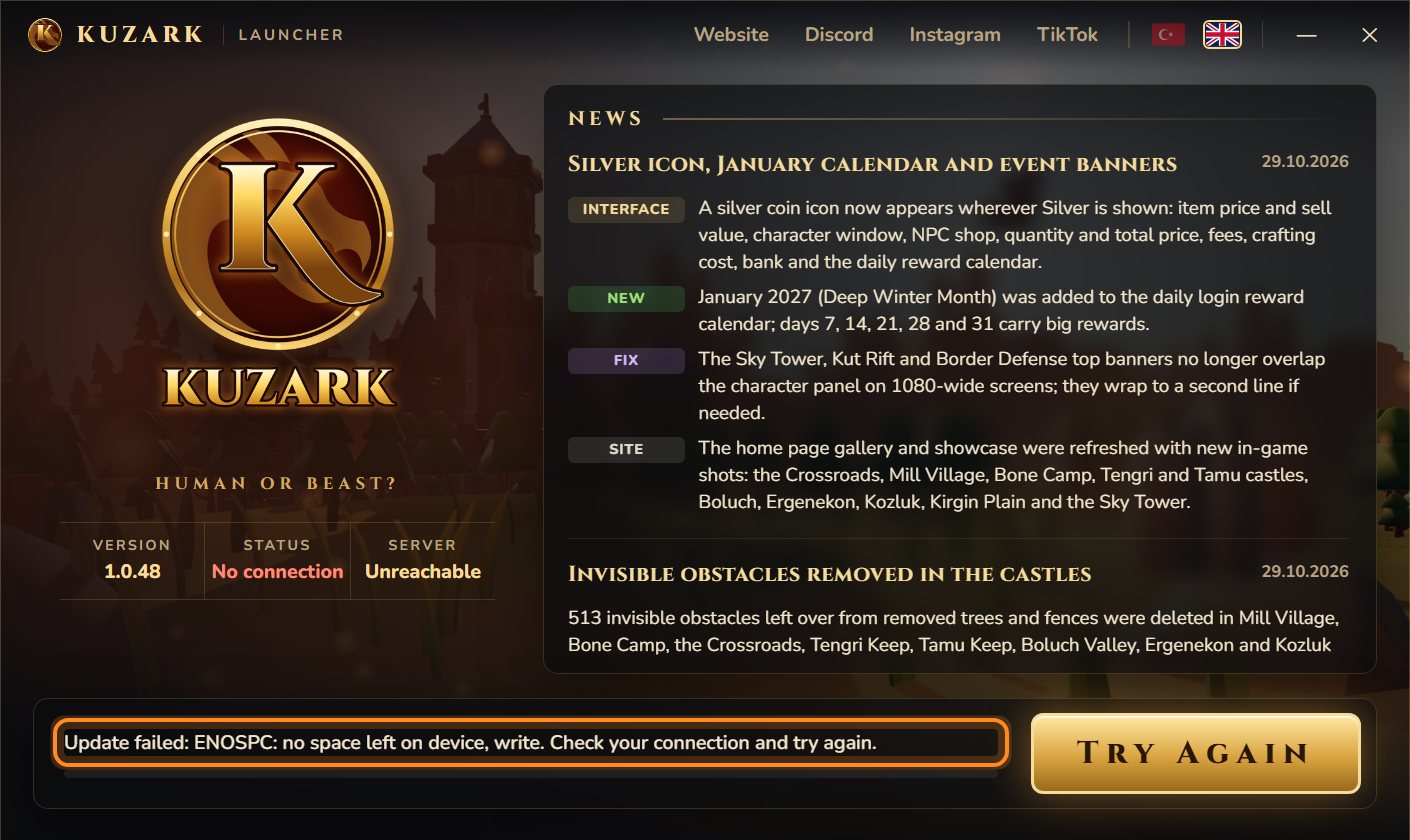
- Free up at least 10 GB on the disk the game is installed on: Settings → System → Storage → clean up Temporary files, uninstall programs you don't use and empty the Recycle Bin.
- If your C: drive is very full, uninstall the game, reinstall it and choose a folder on another drive during setup (for example D:\Games\Kuzark).
- Reopen the launcher. The download continues where it left off; files already downloaded are not downloaded again.
7Launcher: file permission error (EPERM / EBUSY) and "game is running"
Errors starting with EPERM, EBUSY or EACCES mean the launcher couldn't move a file into place. Almost always another program is holding the file at that moment: usually an antivirus scan or a game left running in the background.
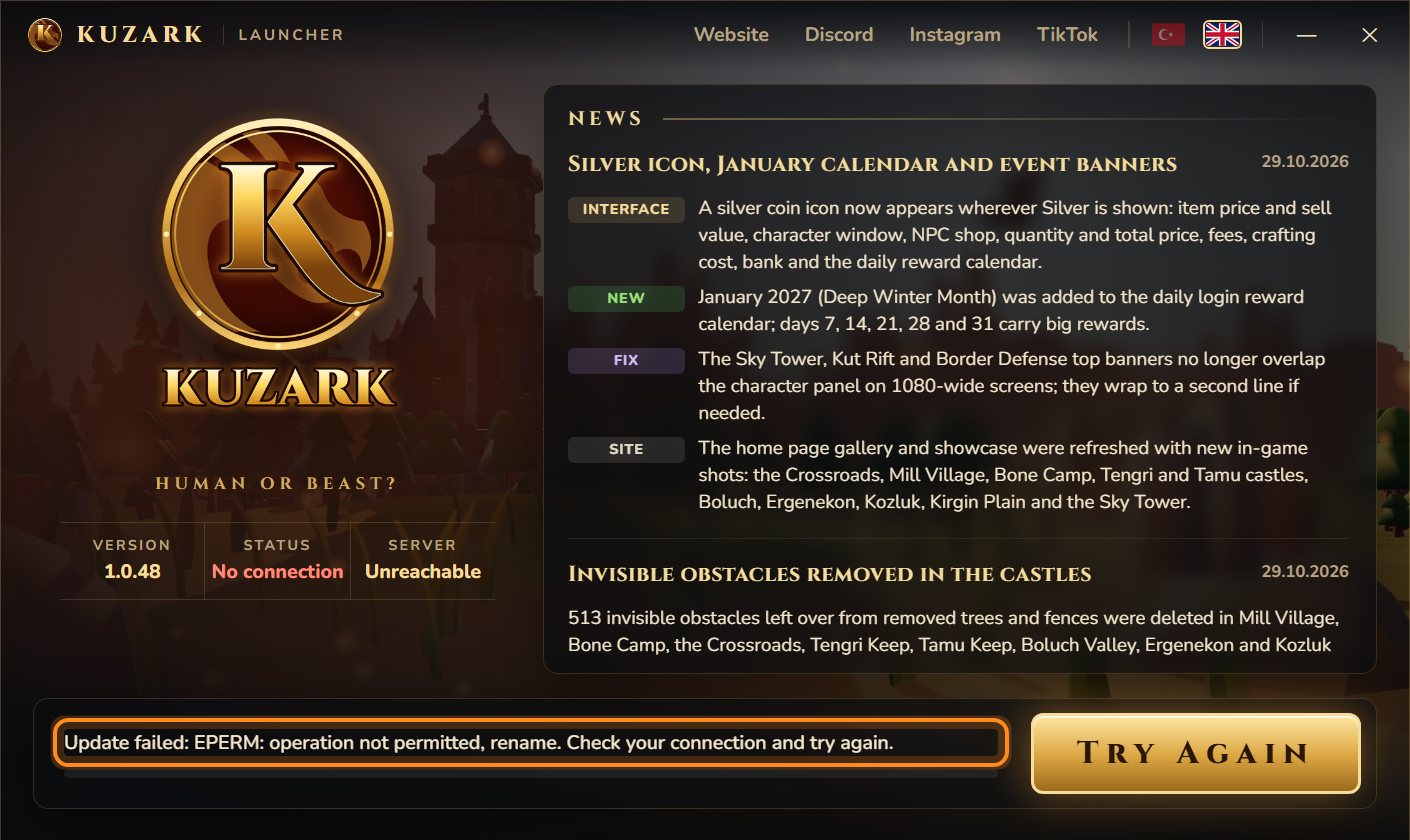
- If the game is open, close it. If you can't see it, open Task Manager with Ctrl + Shift + Esc, select the processes named Kuzark and choose End task.
- Add the game folder to your antivirus exclusions (heading 4).
- If you installed the game in a protected folder such as C:\Program Files, uninstall it and install it in the default folder.
- Reopen the launcher.
This appears when a new game patch arrives while the game is still running. Close the game (from Task Manager if needed) and reopen the launcher.
8Setup: "This folder is not writable"
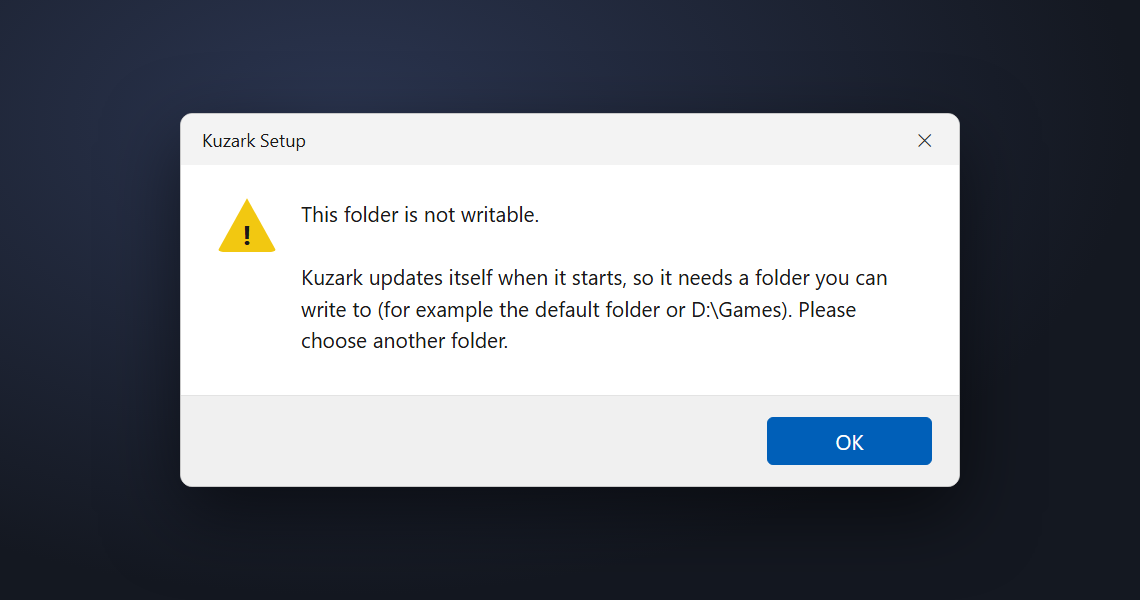
Kuzark updates itself every time it starts, so it must be installed in a folder it can write to. Protected folders such as Program Files or Windows, or drives without write permission, can't be chosen.
- Easiest: press Next on the folder page without changing anything (the default folder).
- If you want another drive, choose a folder you created yourself, for example D:\Games\Kuzark.
- Setup does not need administrator rights; there is no need to use "Run as administrator".
9"Game files are missing or the update did not finish"
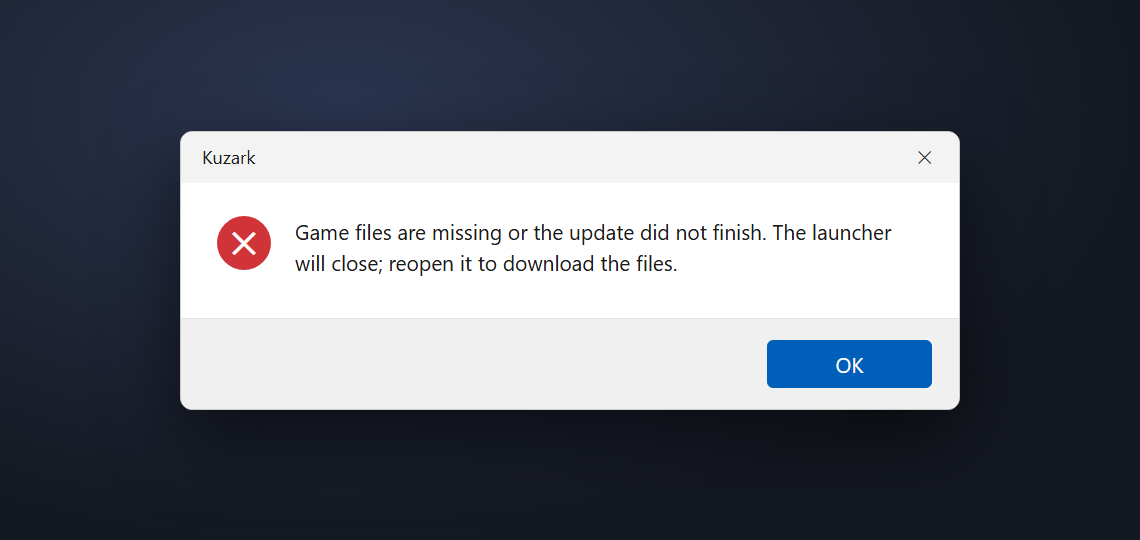
This appears when the game's main file can't be found. It happens if the first download was interrupted or the antivirus deleted a game file. Press OK; the launcher closes. First check the antivirus quarantine, then reopen the launcher: the missing files are downloaded again.
10"VCRUNTIME140.dll was not found"
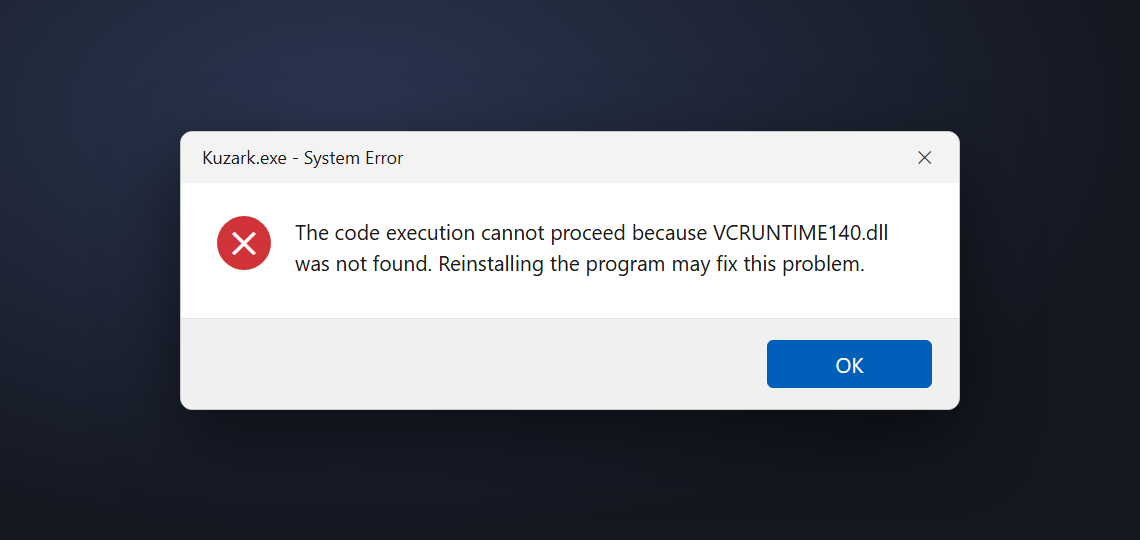
This error (or MSVCP140.dll, VCRUNTIME140_1.dll) appears when the Microsoft Visual C++ runtime libraries are missing from Windows. Download and install the X64 version of the Visual C++ Redistributable from Microsoft's official page and restart your PC: learn.microsoft.com → latest supported VC++ redistributable. Do not download individual DLL files from other sites.
11The game won't start, black screen or graphics error
If the game doesn't open after you press PLAY in the launcher, stays on a black screen or shows a graphics / DirectX error, the problem is most likely your graphics card driver.
- Update your graphics card driver. Download the latest driver from your card maker's site (NVIDIA, AMD or Intel). The "basic" driver Windows installs by itself is usually not enough.
- Run Windows Update: Settings → Windows Update → Check for updates. DirectX updates come from here.
- On a laptop, make the game use the powerful graphics card: Settings → System → Display → Graphics → add Kuzark (game\Kuzark.exe in the game folder) → High performance.
- Your card must support DirectX 11 / 12 (every card released in the last ten years does). At least 4 GB RAM (8 GB recommended) and 64-bit Windows 10 / 11 are required.
- If the game opens but stutters, lower the preset one step in the game's Settings → Graphics.
12Still not solved
Write to us and we'll sort it out together. Including the following in your message helps us help you much faster:
- A screenshot of the text on your screen (Win + Shift + S),
- your Windows version (Windows 10 or 11) and the step where you got stuck,
- the name of your antivirus program, if you use one.
Discord support channel · My Account → Support
See also: System requirements · Wiki · Game Rules